ユーザー投稿の方法
スモツーでは、地図上の洲本市内のエリア内に画像やコメントを投稿できます。(※洲本市以外のエリアには投稿できません。)
地図画面から投稿する場合
フリー投稿
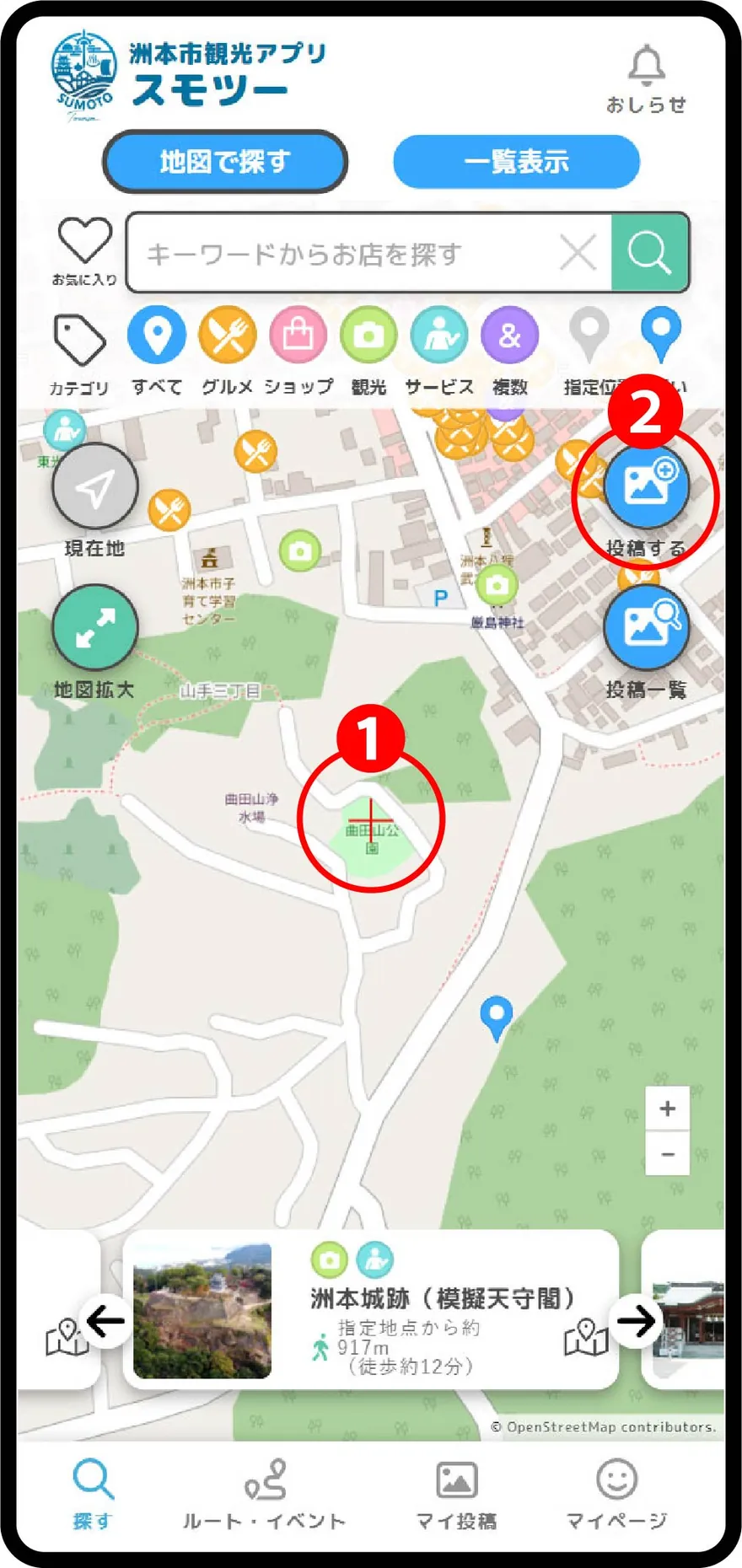
(1) 投稿したいポイントに、地図上の+マークを合わせます。
(2) 「投稿する」のアイコンをタップします。
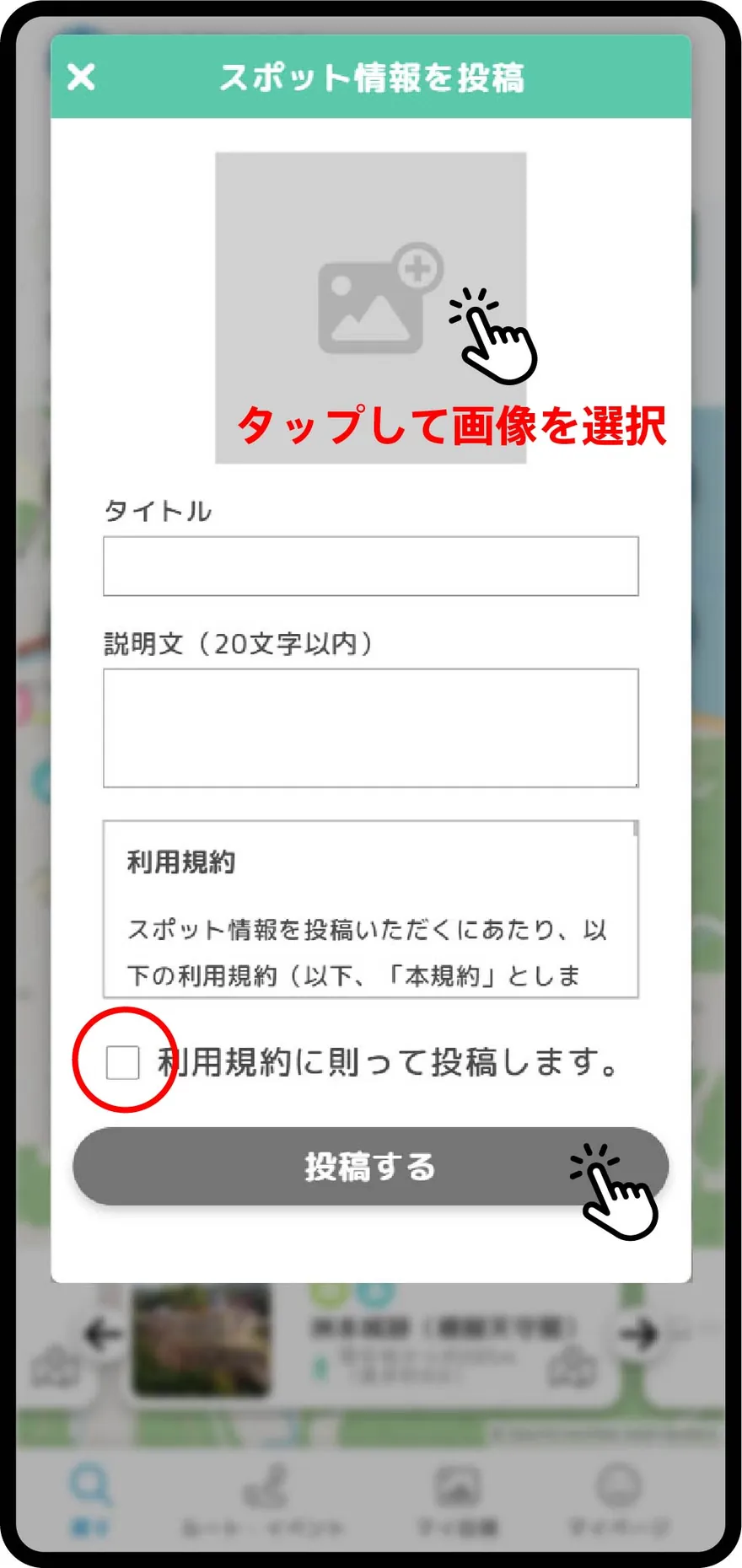
画像・タイトル・説明文を入力し、利用規約をご確認の上、「利用規約に則って投稿します。」にチェックし、投稿するをタップします。
スポットに投稿
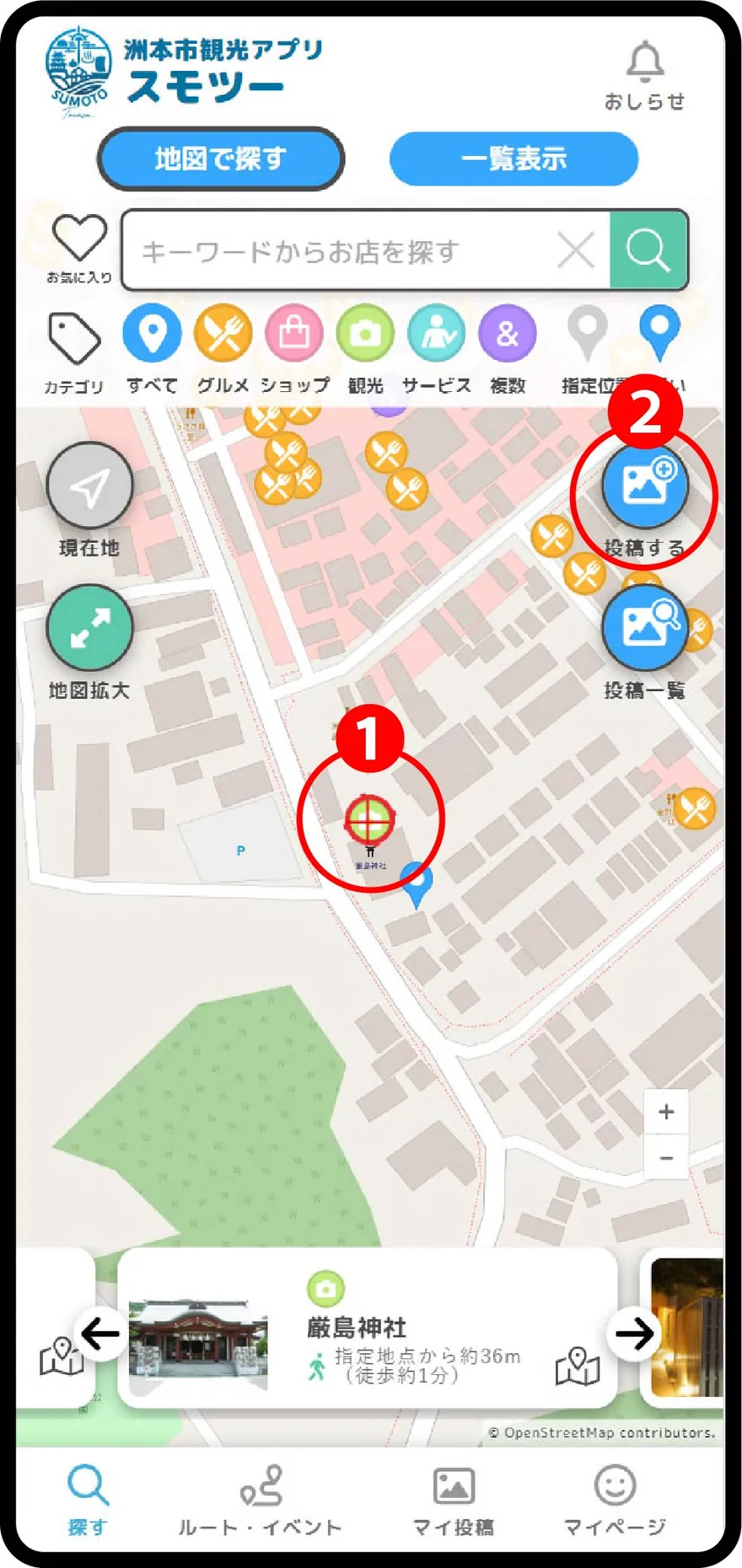
投稿したい店舗やスポットに赤丸のカーソルと+マークを合わせ、「投稿する」のアイコンをタップします。
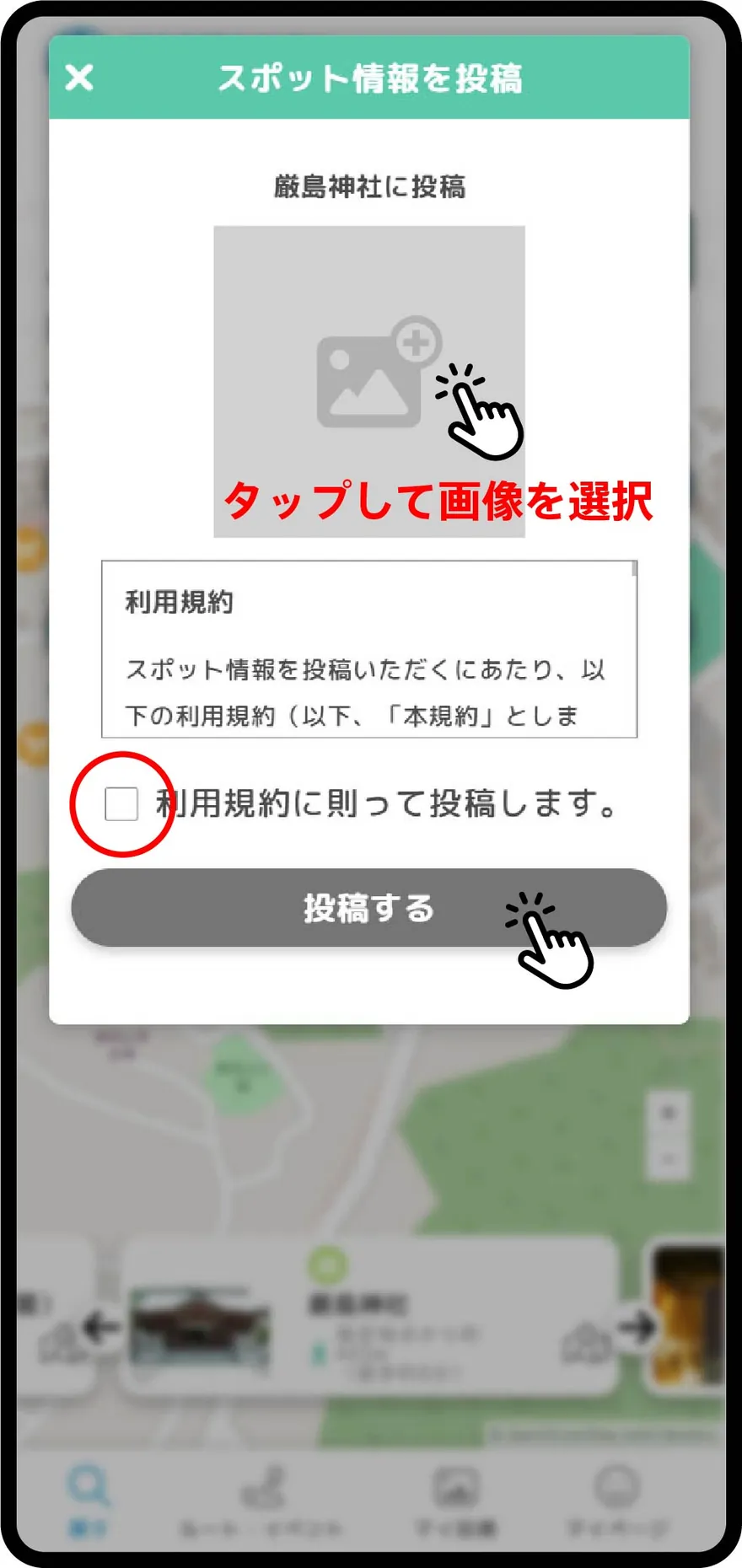
投稿する画像を選択し、利用規約をご確認の上、「利用規約に則って投稿します。」にチェックし、投稿するをタップします。
店舗詳細画面から投稿する場合
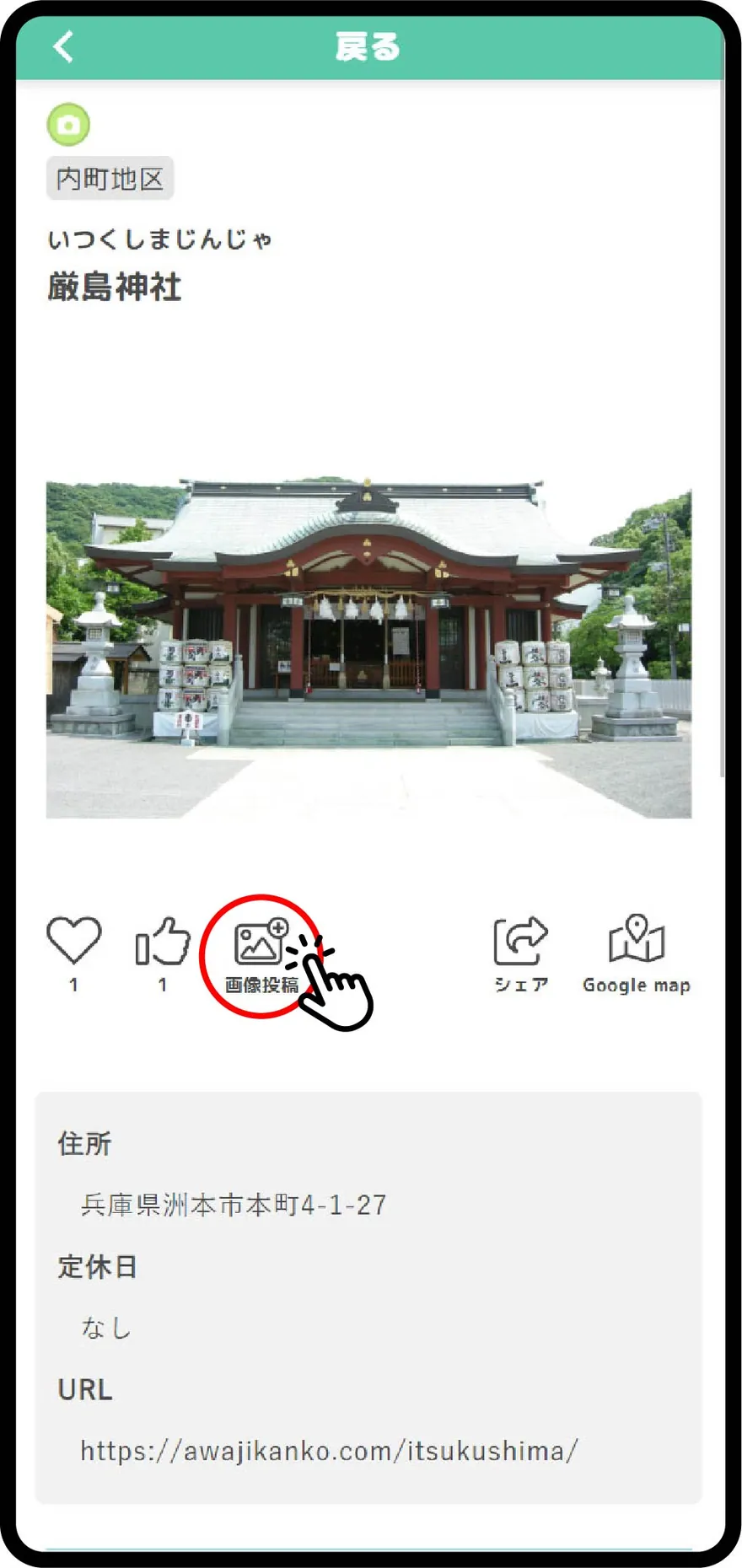
店舗詳細画面の中の画像投稿をタップします。
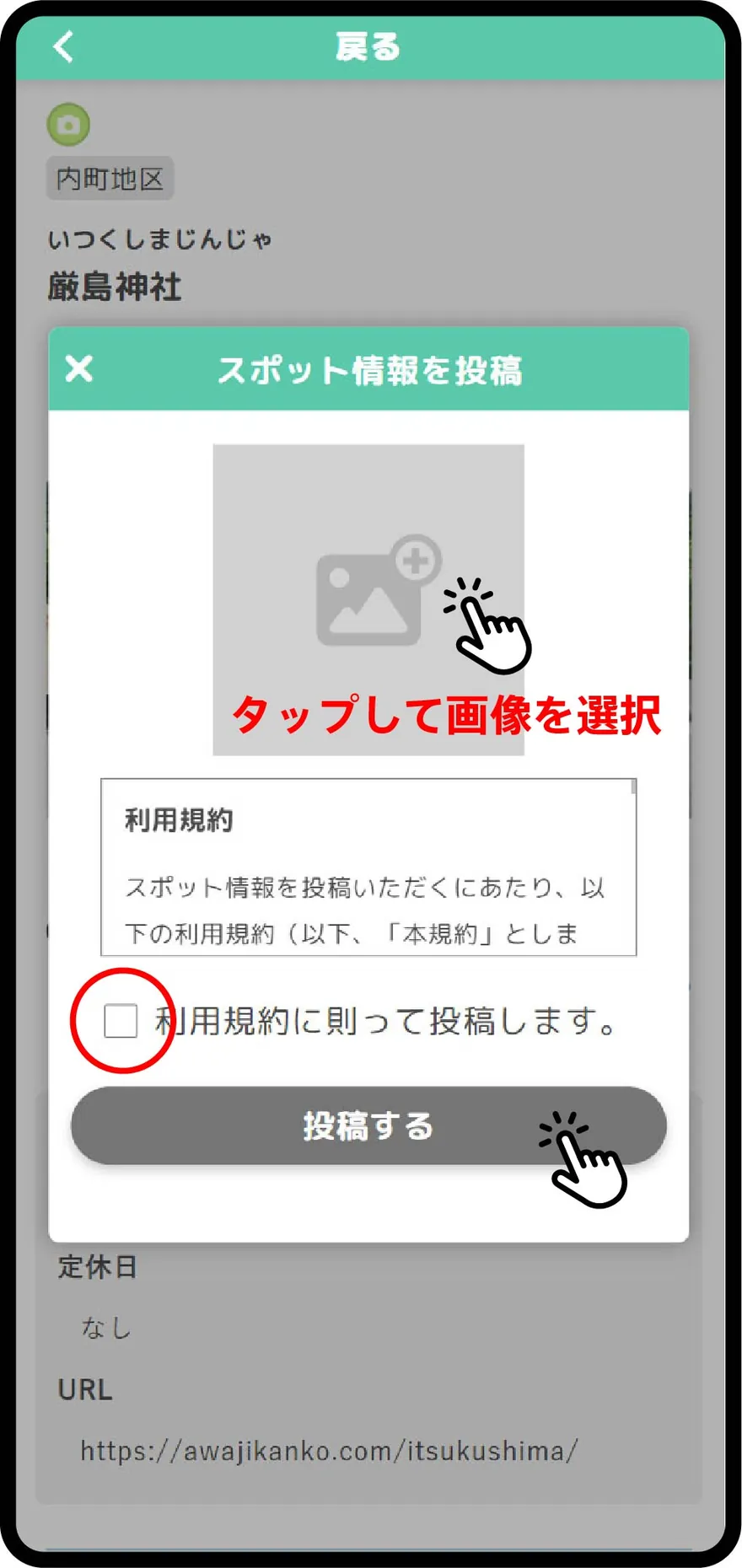
投稿する画像を選択し、利用規約をご確認の上、「利用規約に則って投稿します。」にチェックし、投稿するをタップします。
投稿の表示
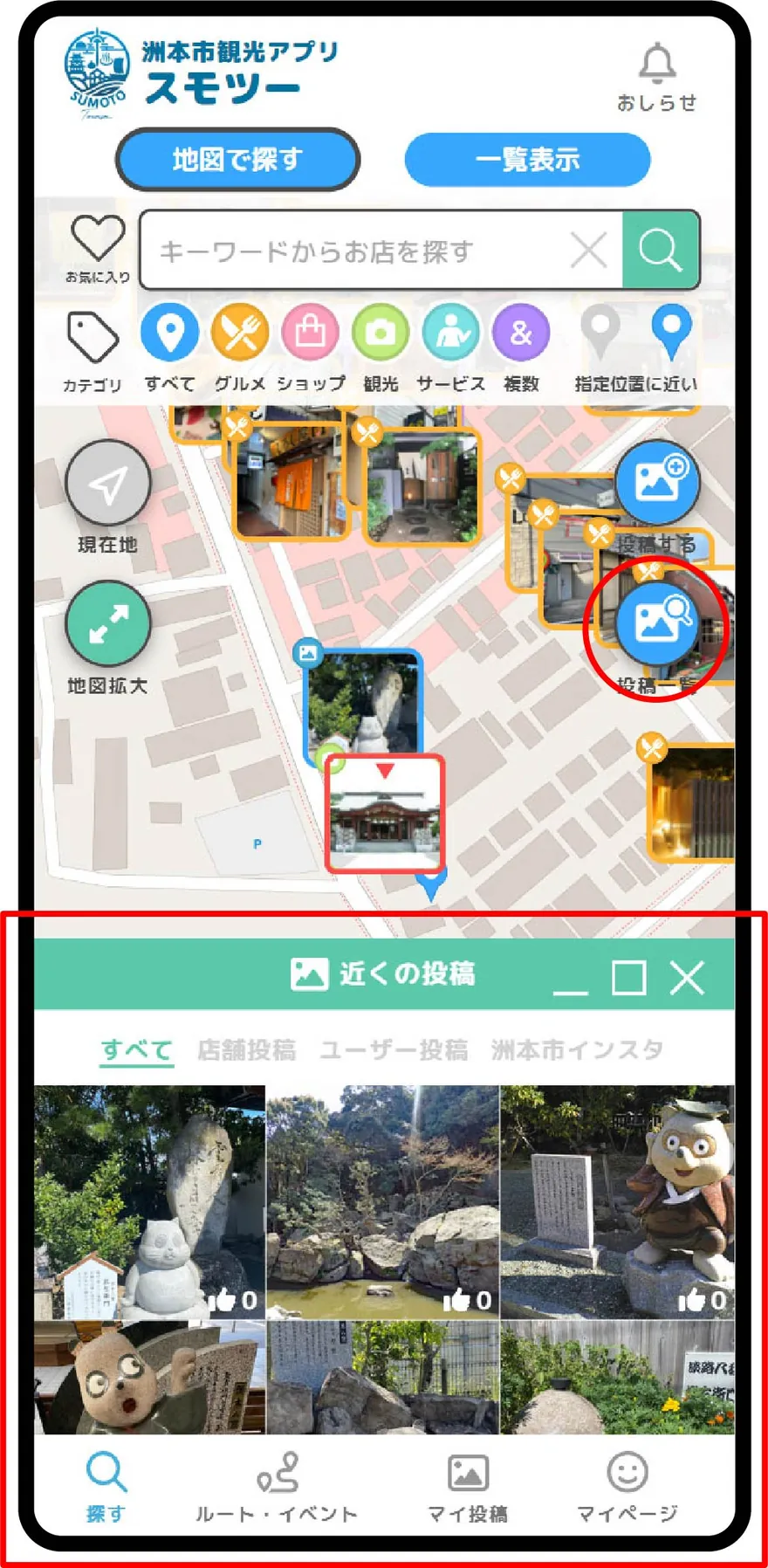
投稿一覧をタップすると近くのスポット投稿画像が新着順に表示されます。
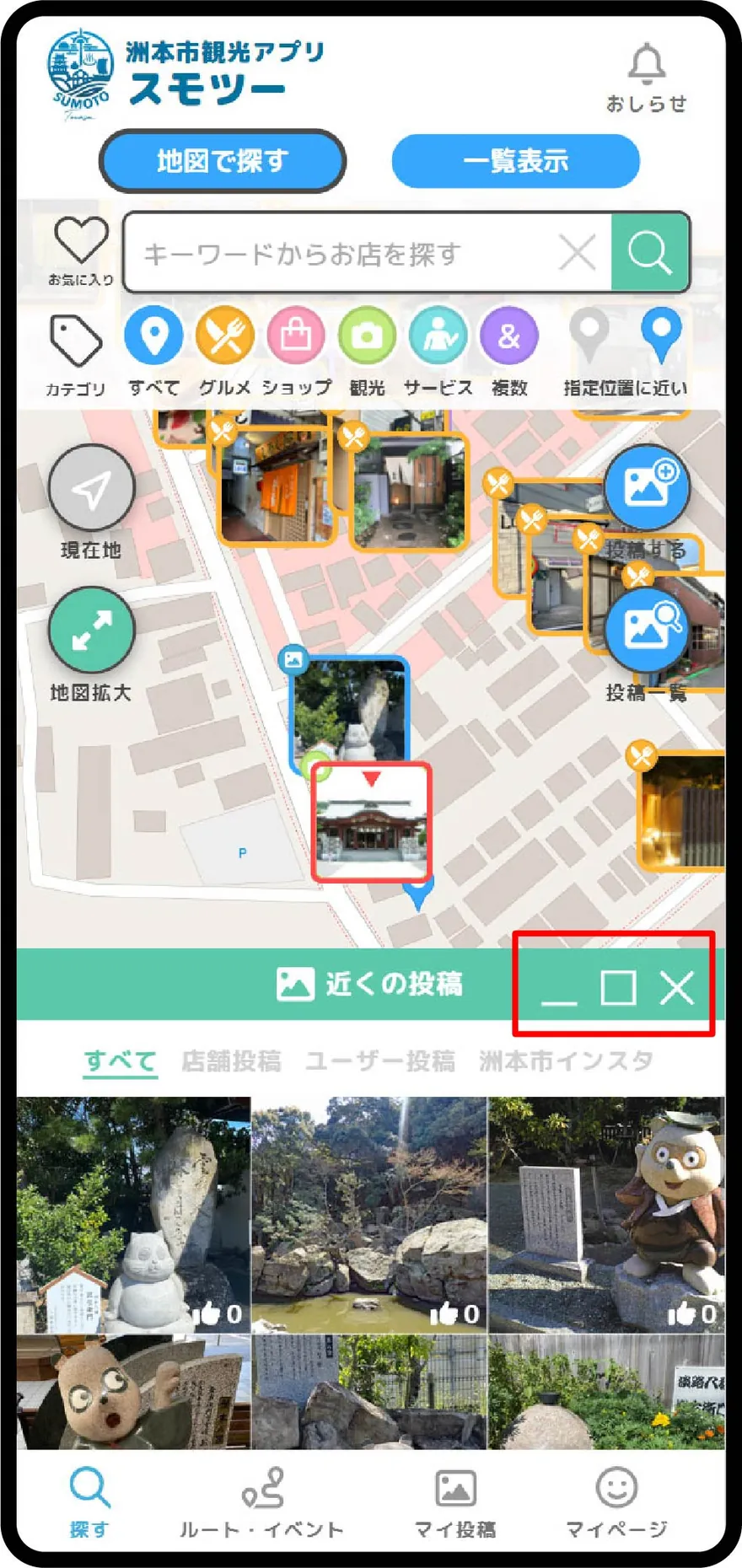
投稿一覧画面の最小化、最大化、ウインドウを閉じる、のアクションが行えます。
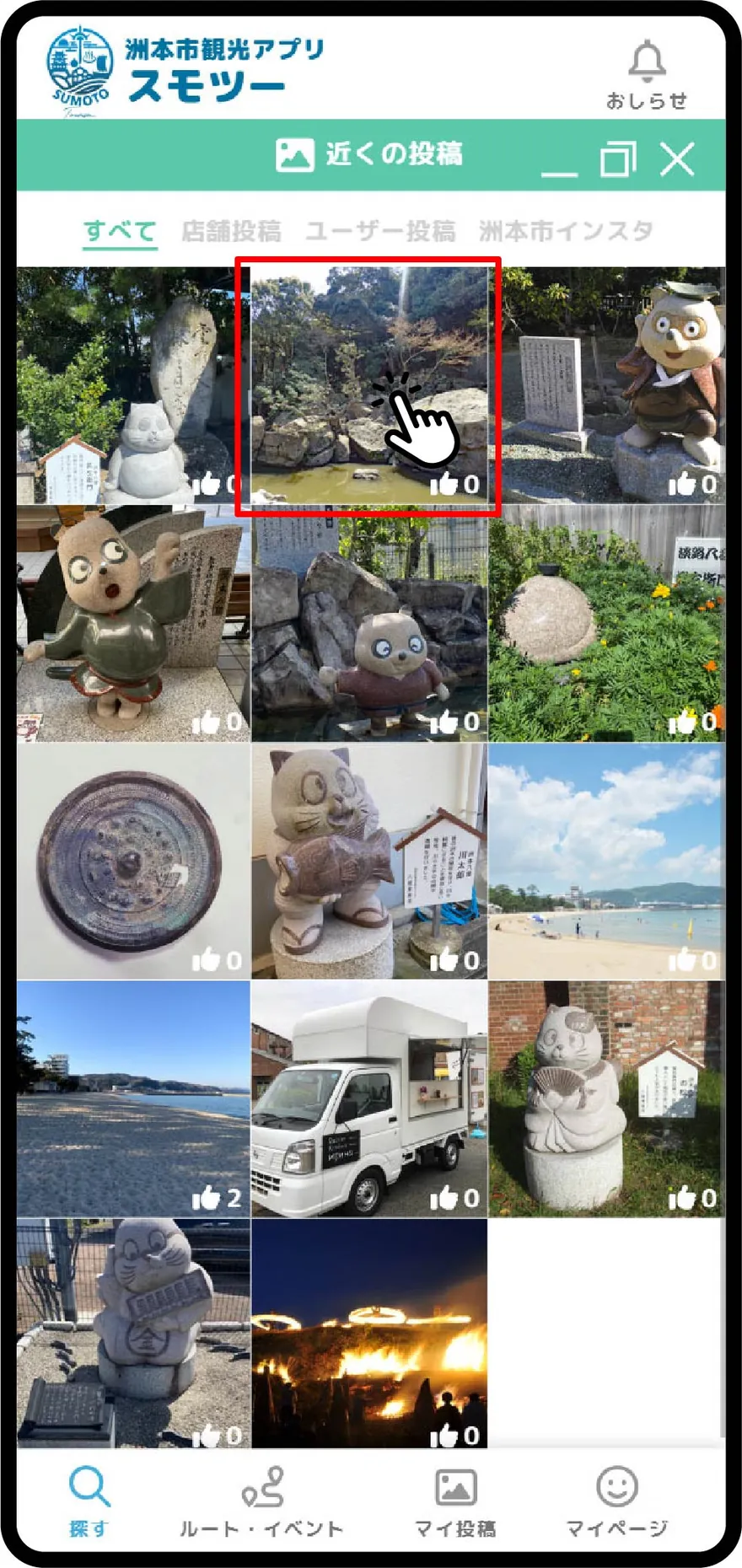
各画像をクリックすることで拡大画面が表示されます。
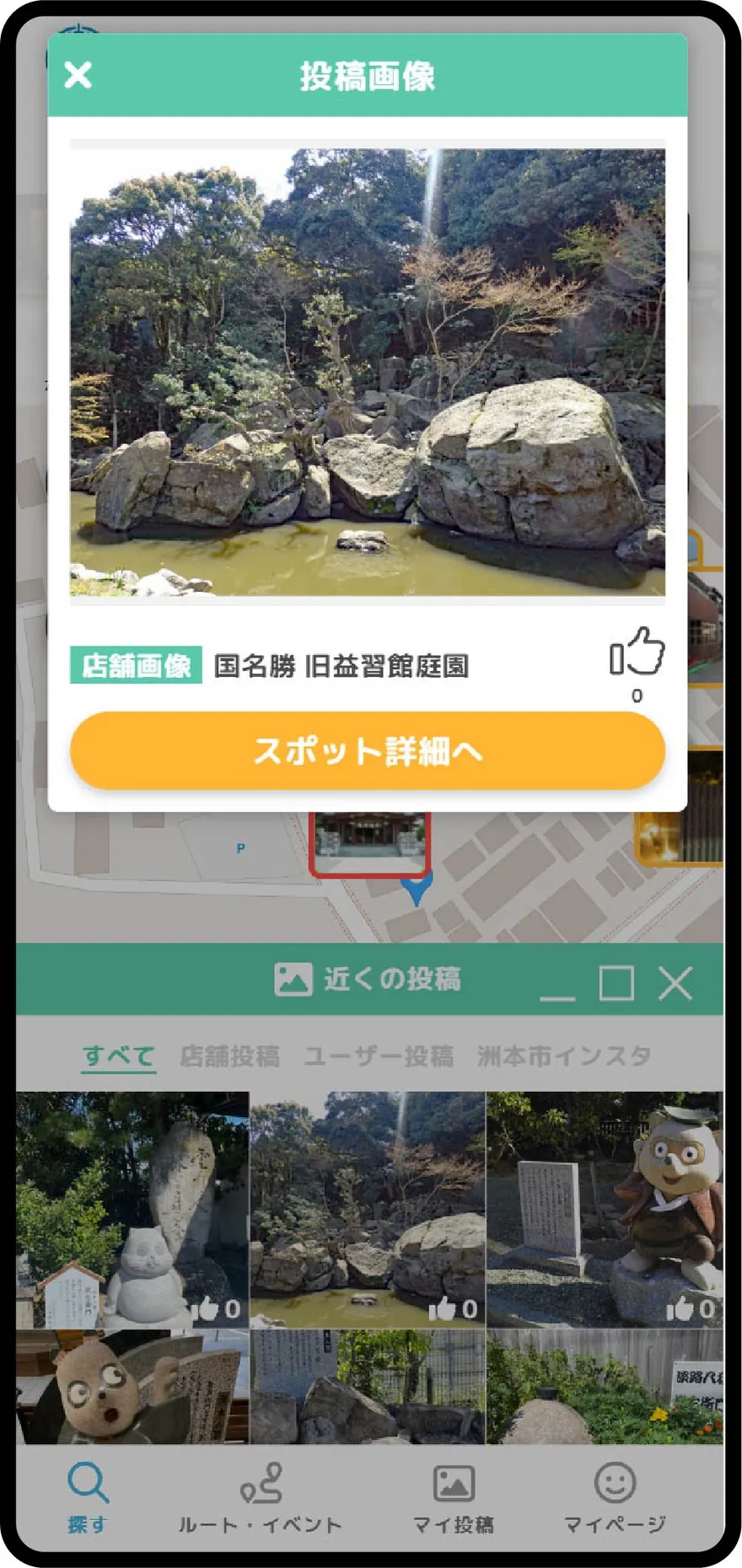
店舗画像の場合は、スポット詳細を表示することができます。
With Sumotour, you can post images and comments within the area of Sumoto City on the map. (※You cannot post outside of Sumoto City.)
Posting from the Map Screen
Free Post
(1) Move the + mark on the map to the point where you want to post.
(2) Tap the “Post” icon.
Enter an image, title, and description. After checking the Terms of Use, check “I agree to the terms of use.” and tap Post.
Post to a Spot
Move the red circle cursor and + mark to the store or spot you want to post to, then tap the “Post” icon.
Select the image to post. After checking the Terms of Use, check “I agree to the terms of use.” and tap Post.
Posting from the Store Detail Screen
Tap Image Post in the store detail screen.
Select the image to post. After checking the Terms of Use, check “I agree to the terms of use.” and tap Post.
Viewing Posts
Tap Post List to see nearby spot post images in order of newest first.
You can minimize, maximize, or close the post list window.
Click each image to display it in a larger view.
For store images, you can view the spot details.